
Part of our Handheld Radios (HTs): The Complete Guide.
Almost every new ham ends up with a Baofeng UV-5R. Somebody hands you one, or it comes in a two-pack, and then you hit the wall: the memory list is empty, and storing a single repeater from the keypad takes about twenty button presses through numbered menus. That is why so many of these radios end up in a drawer.
The fix is CHIRP, free programming software that turns your radio’s memory into a spreadsheet. This is the walkthrough I use when I teach new hams, step by step, plus three ways to fill the radio: RepeaterBook, RadioReference, and letting Claude or Gemini build the whole channel list for you. I explain in my UV-5R review why I no longer recommend buying one new, but millions are already out there, and learning to program one teaches you how nearly every radio works.
What You Need
- The radio: charged, antenna on, and the volume turned up a little.
- A programming cable: it has the same two-pin Kenwood-style plug as a speaker mic. Get one with a genuine FTDI or CH340 chip. Many of the old blue cables use counterfeit Prolific chips that newer Windows drivers refuse to talk to. I compare the options in Programming Cables Compared.
- A computer: Windows, Mac, or Linux with a free USB port.
- CHIRP-next: free from chirpmyradio.com. Only download it there. Copies on other sites are often old or bundled with junk.
Step 1: Install CHIRP and Find Your Port
- Download and install CHIRP-next for your computer.
- Plug the cable into the computer. If it came with a driver, install it.
- Find the port. On Windows, open Device Manager and look under Ports (COM & LPT) for the COM number. On a Mac it shows up as something like /dev/cu.usbserial. On Linux it is usually /dev/ttyUSB0. If you are not sure which one is yours, unplug the cable and see which port disappears.
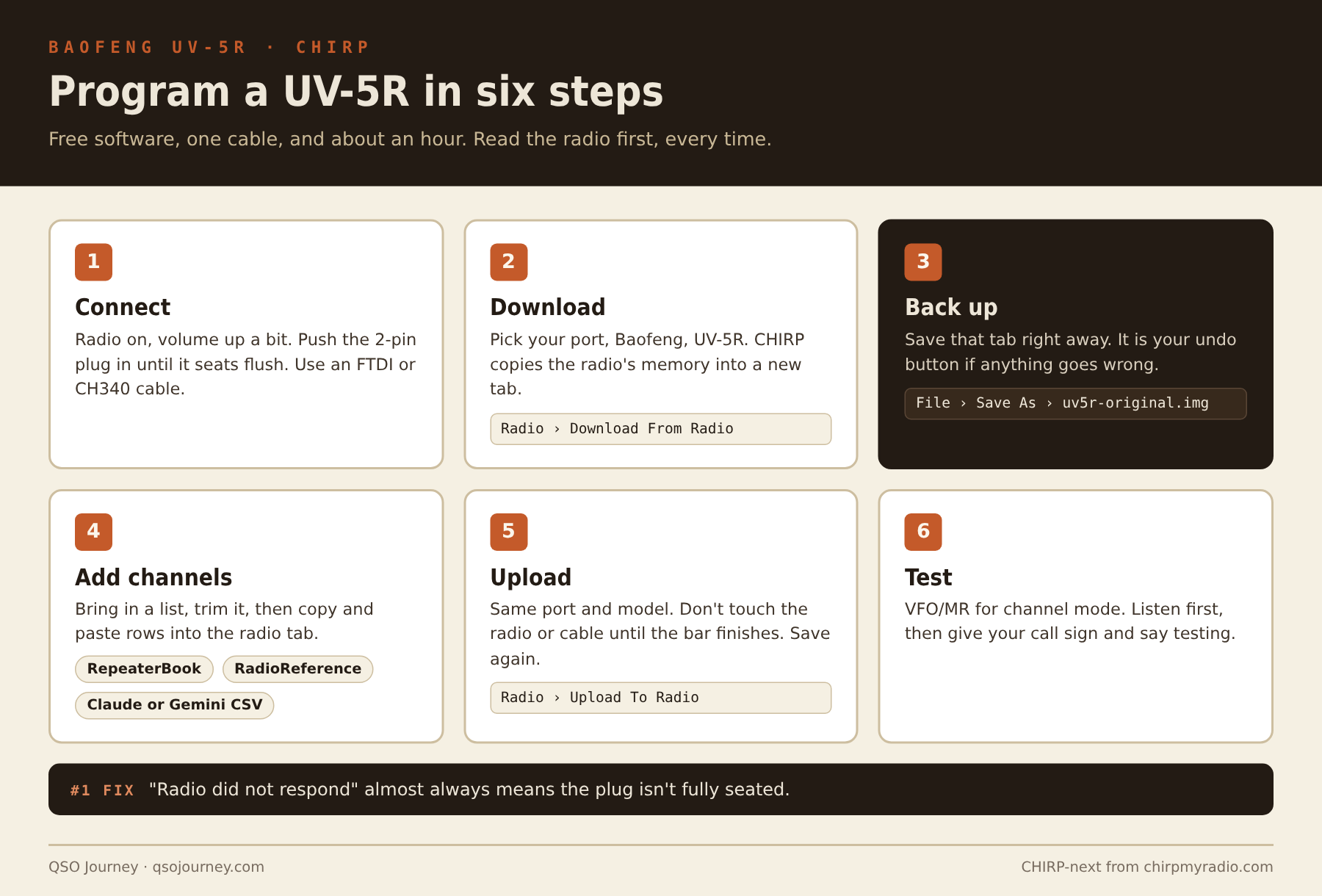
- Plug the other end into the radio’s speaker-mic jack and push hard. The plug has to seat flush. A half-seated plug is the number one reason CHIRP says “Radio did not respond.”
Step 2: Download From the Radio and Save a Backup
This is the one rule I repeat in every class: download first, save a backup, then change things. CHIRP needs a copy of your radio’s memory before it can write to it, and Baofeng has changed the memory layout between firmware versions. That copy is also your undo button.
- Turn the radio on.
- In CHIRP, choose Radio › Download From Radio.
- Pick your port, Vendor Baofeng, Model UV-5R, and click OK. A progress bar runs and a new tab opens with your channels.
- Right away, choose File › Save As and name it something like uv5r-original.img.
The UV-5RA, UV-5RE, UV-5R+ and most of the other rebadged versions load as UV-5R. If CHIRP complains about the model, check the supported radio list on chirpmyradio.com for your exact variant.
Step 3: Understand the CHIRP Grid
Each row is one memory channel. The UV-5R has 128 of them, numbered 0 to 127 in CHIRP, and names can be up to 7 characters. For a repeater, four columns decide whether it hears you: Duplex, Offset, Tone Mode, and Tone.

- Duplex: plus or minus for a repeater, blank for simplex, and “off” for receive only. More in Repeater Offsets and Duplex, Explained Simply.
- Offset: 0.600 MHz on 2 meters and 5.000 MHz on 70 centimeters.
- Tone Mode: start with “Tone.” It sends the PL tone that opens the repeater. TSQL also mutes your radio unless it hears that tone back, so if the repeater does not send one, you hear nothing. See What Is a PL Tone.
- Tone: the PL tone value from the listing, like 100.0.
Example: my main repeater, N7ULY on Sacaton Peak, is 447.725 MHz, minus 5 MHz, PL 100.0. In CHIRP that is Frequency 447.725000, Duplex minus, Offset 5.000000, Tone Mode Tone, Tone 100.0. If listings are new to you, How to Read a Repeater Directory Listing walks through one.
Step 4: Fill the Channels
You can type channels in by hand, but you do not have to. Each of the options below lands in its own CHIRP tab, so you can trim the list before anything touches your radio. Then you copy the rows you want into your radio’s tab.

Option A: Query RepeaterBook Inside CHIRP
RepeaterBook is the free directory of amateur repeaters, and CHIRP can talk to it directly. Choose Radio › Query data source › RepeaterBook, enter your state and town, set a distance (25 to 40 miles is a good start), and pick the 2 meter and 70 centimeter bands. The results open in a new tab. Delete anything too far away or that you will never use. Ten repeaters you actually use beat a hundred you scroll past.
Option B: Export a List From RepeaterBook.com
The website’s search is more flexible than the one in CHIRP: by county, by radius, or along a road trip route. Log in with a free account (the export menu only appears when you are signed in), run your search, and export it in CHIRP format. In CHIRP, use File › Open on that file. If CHIRP says “No channels found,” make sure the file is not open in Excel.
Listening Channels From RadioReference
RadioReference is the scanner world’s database, organized by state and county: weather, fire, EMS, rail, and more. Browsing it on the website is free. CHIRP also has a RadioReference query, but it needs a paid Premium account. Two cautions. First, everything from RadioReference is listen only, so set Duplex to off on every one of those rows. Second, the UV-5R only hears conventional analog FM. A lot of public safety has moved to trunked, digital, or encrypted systems that it simply cannot receive. The seven NOAA weather channels (162.400 to 162.550 MHz) are the ones every radio should have.
Option C: Have Claude or Gemini Build a CSV
This is my favorite option for new hams, because you do not have to know what to ask for yet. CHIRP opens a plain CSV file, and AI assistants like Claude and Gemini are good at finding public listings and putting them into strict columns. I showed my own Pinal County file in How to Use AI to Program Your Ham Radio. Here is a version tuned for the UV-5R. Change everything in brackets:
Build a CSV file I can open in CHIRP for a Baofeng UV-5R.

Include:
- The 2 m and 70 cm amateur repeaters within [25] miles of [TOWN, STATE]. Put my main repeater, [CALL SIGN on FREQUENCY], in Location 0.
- The 146.520 and 446.000 simplex calling frequencies.
- The seven NOAA weather channels (162.400 to 162.550) as receive only.
- [Anything else: club or ARES simplex frequencies, county public service channels to monitor only.]

Format rules:
- Use exactly this header row, with no quotes:
Location,Name,Frequency,Duplex,Offset,Tone,rToneFreq,cToneFreq,DtcsCode,DtcsPolarity,RxDtcsCode,CrossMode,Mode,TStep,Skip,Power,Comment,URCALL,RPT1CALL,RPT2CALL,DVCODE
- Match these example rows exactly, including the number formats, Tone->Tone, 023, NN, 5.00, and the four empty columns at the end:
0,LOCALRP,146.940000,-,0.600000,Tone,100.0,100.0,023,NN,023,Tone->Tone,FM,5.00,,4.0W,Example repeater,,,,
9,WX1,162.550000,off,0.000000,,88.5,88.5,023,NN,023,Tone->Tone,FM,5.00,S,1.0W,NOAA weather receive only,,,,
- Name: 7 characters or fewer.
- Duplex: + or - for repeaters, empty for simplex, off for anything I can't legally transmit on.
- Tone: "Tone" when a repeater needs a PL tone (put the tone in both rToneFreq and cToneFreq). Leave it empty when no tone is needed and keep 88.5 in the tone columns.
- Mode: FM unless the listing says narrow, then NFM. Power: 4.0W or 1.0W.
- Number the rows from 0 in the order I want them on the radio.

Give me the result as a downloadable .csv file (or in one code block), then list your source for every repeater so I can check it.
Why so strict? CHIRP is picky about CSV files. It rejects a line with an empty tone number, a missing cross mode, or power written as “High” instead of watts. Giving the AI example rows to copy heads off almost all of that.
- If you get a file, save it as uv5r.csv. If you get text, paste it into Notepad (Windows) or TextEdit in plain-text mode (Mac) and save it as uv5r.csv.
- In CHIRP, use File › Open on the CSV. It opens in its own tab.
- Check every row before you trust it. Compare each repeater’s frequency, direction, and tone with RepeaterBook or the club that runs it. The AI is working from public listings that can be out of date, and it can simply get a number wrong with total confidence.
Option D: Use the free CHIRP File Builder. If you’d rather skip the AI prompt, the CHIRP File Builder on this site lets you pick repeaters, simplex and NOAA weather channels and downloads a CSV with the columns CHIRP expects, ready to open and paste into your UV-5R image.
Step 5: Paste, Upload, and Test
- In the RepeaterBook or CSV tab, select the rows you want and choose Edit › Copy.
- Switch to your radio’s tab, click the row where they should start, and choose Edit › Paste. CHIRP checks each channel against what the UV-5R can do and flags anything that will not fit, like a name that is too long.
- Choose Radio › Upload To Radio with the same port and model. Do not touch the radio or the cable until the progress bar finishes. Then save the image again so you have a copy of the new layout.
- On the radio, press VFO/MR to switch to channel mode. Pick a repeater, listen for a bit, then give your call sign and say “testing.” Someone will often come back with a signal report. Simplex calling frequencies like 146.520 work the same way, minus the repeater, and I cover the etiquette in Simplex Calling Frequencies and Etiquette.
When It Doesn’t Work
| What you see | What to try |
|---|---|
| “Radio did not respond” | Push the plug in harder. Make sure the radio is on. Check the port, or try another USB port. |
| No port shows up | Cable driver. A counterfeit Prolific chip is the usual culprit; an FTDI or CH340 cable fixes it. |
| Model or firmware error | Check chirpmyradio.com for the model CHIRP wants for your variant. |
| You hear the repeater but cannot open it | Wrong tone, offset, or direction. Recheck them against the listing. |
| You hear nothing on the repeater | Tone Mode is set to TSQL. Change it to Tone. |
| CSV says “No channels found” | Close it in Excel. The header row must match CHIRP’s exactly, with no quotes. |
Worst case, open the uv5r-original.img backup from Step 2 and upload it. You are right back where you started.
A Programmed Channel Isn’t Permission
- Listening is open to anyone. Transmitting on ham frequencies takes at least a Technician license. Start with Getting Your Ham Radio License.
- Identify: give your call sign at the end of a contact and at least every 10 minutes while you are talking. More in Callsign vs DMR ID vs APRS SSID.
- Lock receive-only channels: weather, public safety, rail, and anything else you cannot transmit on gets Duplex “off.”
- Not for FRS, GMRS, or MURS: the UV-5R can tune those frequencies, but it is not certified for those services, so do not transmit there with it.
That is the whole process. The first time takes about an hour, mostly fighting the cable. After that, updating the radio for a road trip or a new club repeater takes five minutes. Pick what goes in channel 0 (for most people, the main local repeater), back up the radio, and build the rest tonight.
Downloads From the Talk
If you scanned the QR code at the end of my talk, here is everything from it. The handout has the step-by-step on one page and the full Claude or Gemini prompt on the second.