
Part of our Building Your First Ham Radio Station guide.
Most shack advice is about radios and antennas. This guide is about the rest: a desk you can sit at for twelve hours of contesting, a network that doesn’t drop when you transmit, and a plan for when the computer that runs your logging, digital modes and CAT control dies. My shack runs Ham Radio Deluxe, WSJT-X and GridTracker on one computer, so the backup sections come from planning for exactly that.
Jump to: Ergonomics · Networking · A backup computer · Logbook backups
Shack Ergonomics: A Desk Built for Long Sessions
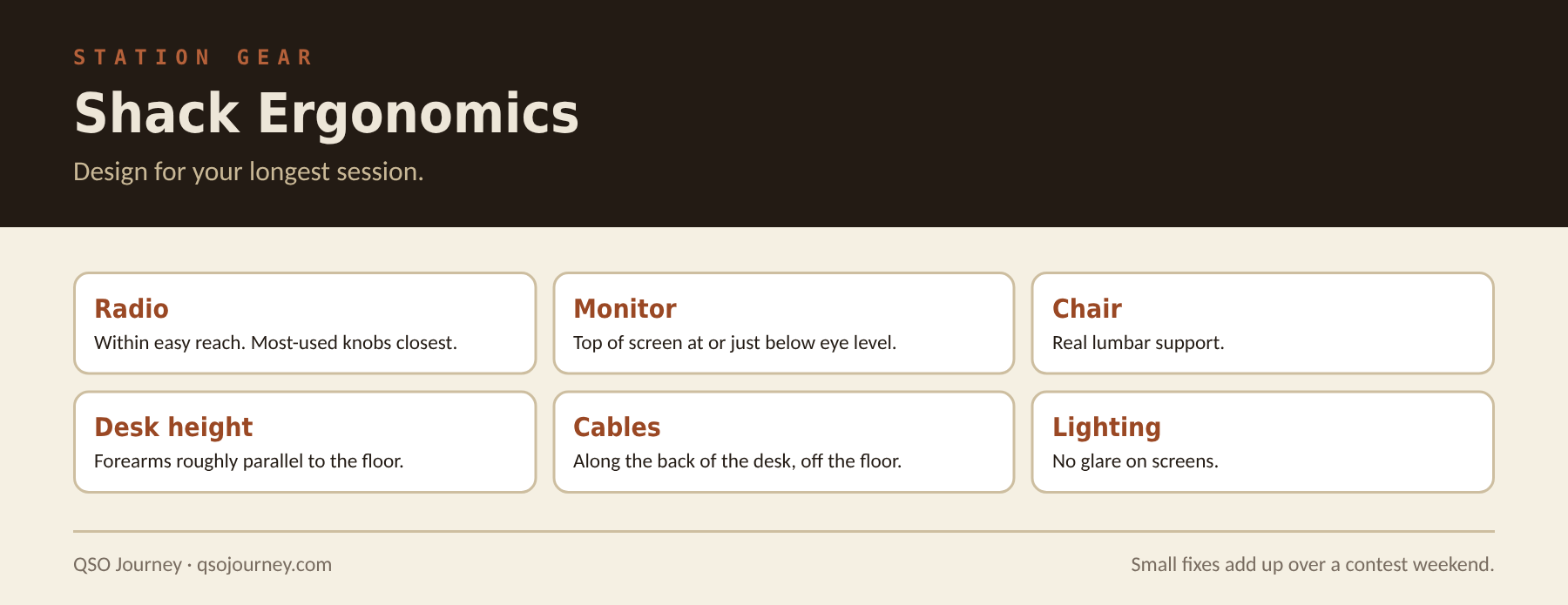
A desk that’s fine for twenty minutes can be miserable by hour six of a contest. Design for your longest sessions, not your shortest.
- Radio within easy reach. The controls you touch most, VFO, filter width, RF gain, should be closest. Small repeated leans forward add up to real strain.
- Monitor at eye level. The top of the screen at or just below eye level, the same as any desk job. A monitor too low means a hunched neck by hour three. A stand or arm fixes it cheaply.
- A real chair, at the right height. A chair with lumbar support does more for long sessions than almost anything else, and it’s the upgrade hams skip. Forearms should rest roughly parallel to the floor.
- Keep your hands free. I run a Heil PRO 7 headset with an FS-3 footswitch, which keeps both hands on the keyboard and VFO during a contest instead of reaching for a desk mic.
- Manage cables. Run power and data along the back or underside of the desk. A foot caught in a loose cable can yank a critical connection mid-contact.
- Light and breaks. Soft light beside the monitor reduces eye strain, and stand up at least once an hour. Run a full practice session before a big contest: anything that bugs you at hour two is a real problem by hour twelve.
Networking Your Shack: Ethernet, WiFi and RF
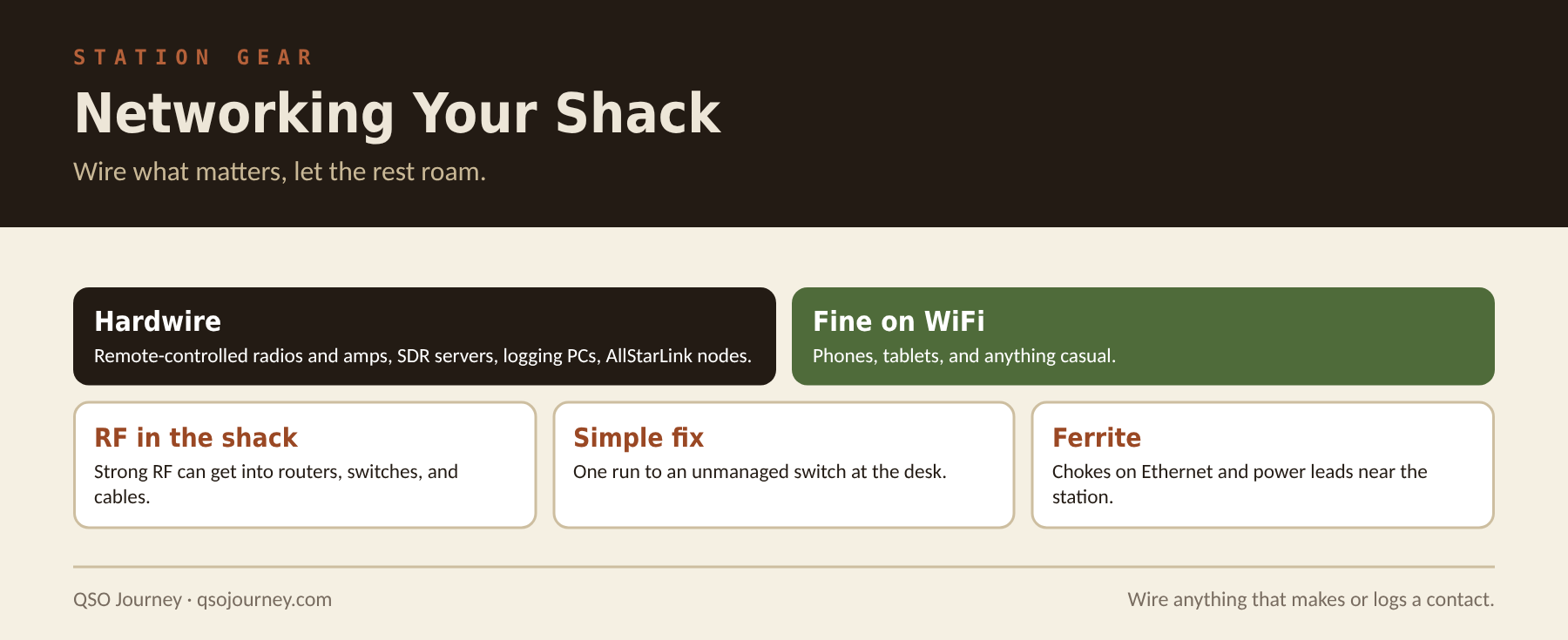
Shacks are networks now: cloud log sync, remote SDRs, network-connected radios, AllStarLink nodes, remote control apps. A shack full of metal cases, coax and RF is a hostile place for WiFi, and strong HF transmissions can get into routers, switches and cables, causing dropouts and resets.
- Hardwire what makes or logs contacts. The logging computer, a remote SDR, anything that controls equipment remotely. An unmanaged switch at the operating position with one run back to the router covers most shacks without opening walls.
- Phones and tablets can stay on WiFi. A hiccup there is an inconvenience, not a lost contact or a corrupted Winlink transfer.
- Keep RF off the network. Snap-on ferrite chokes on Ethernet and power cables near the radio, shielded Ethernet near the station or feedline, network gear away from the feedline entry, and a common-mode choke at the antenna feedpoint, which often clears network problems too.
If the router reboots or drops only when you transmit on certain bands, that’s RF getting in, and the same chokes and grounding that clean up RFI elsewhere in the house usually fix it.
A Backup Plan for Your Shack Computer
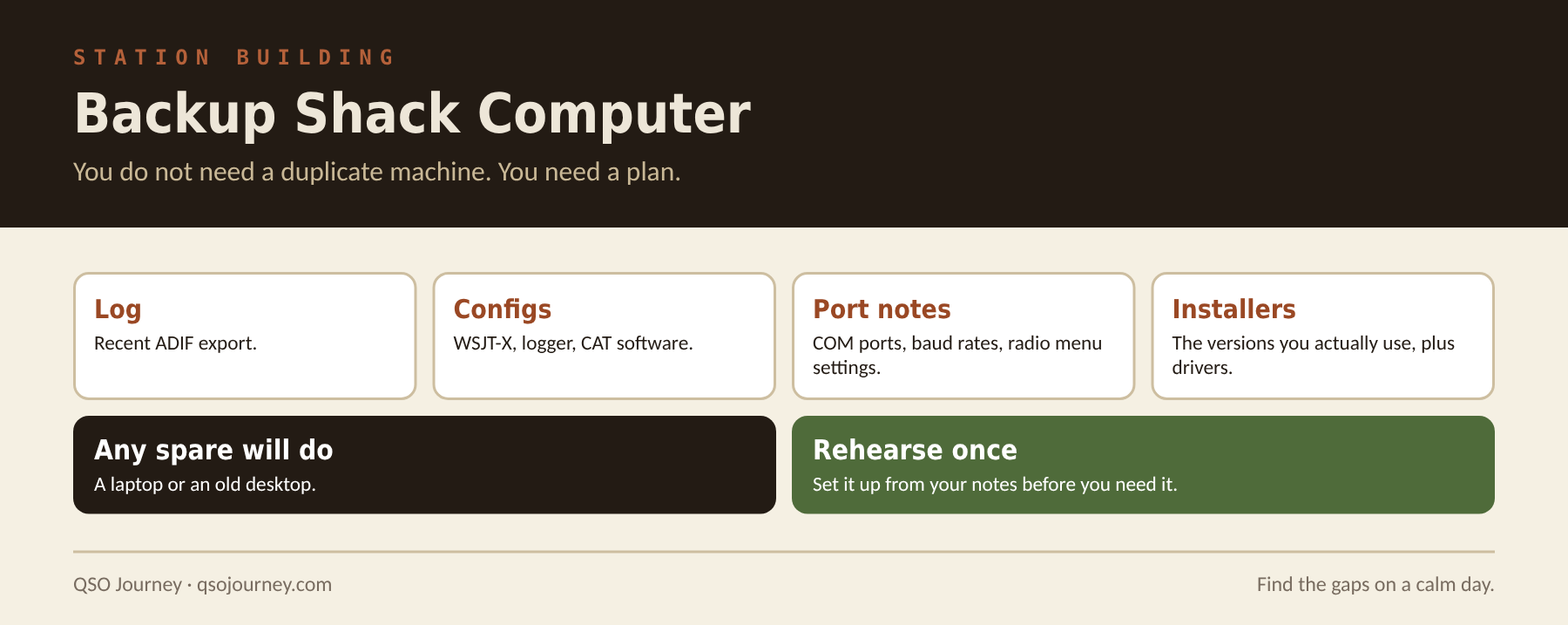
Most hams have a backup radio but not a backup computer, and a dead computer can take out logging, digital modes, CAT control and remote access all at once. You don’t need a duplicate machine. You need everything required to press any spare laptop into service quickly:
- A recent log export (see the logbook section below)
- Config files for WSJT-X, your logger and CAT software, so you’re not rebuilding settings from memory
- A written note of COM ports, baud rates and the radio quirks you’ve already worked out
- The radio menu settings the software depends on, like USB audio levels and CAT baud rate, plus the USB driver your radio or interface needs, such as the Silicon Labs CP210x driver many radios use
- Installers or download links for the exact software versions you run, plus your licenses
Then actually set up the spare machine from those files once, as a test. Finding gaps on a calm evening beats finding them when the primary dies mid-contest or mid-emergency.
A Backup and Sync Routine for Your Logbook
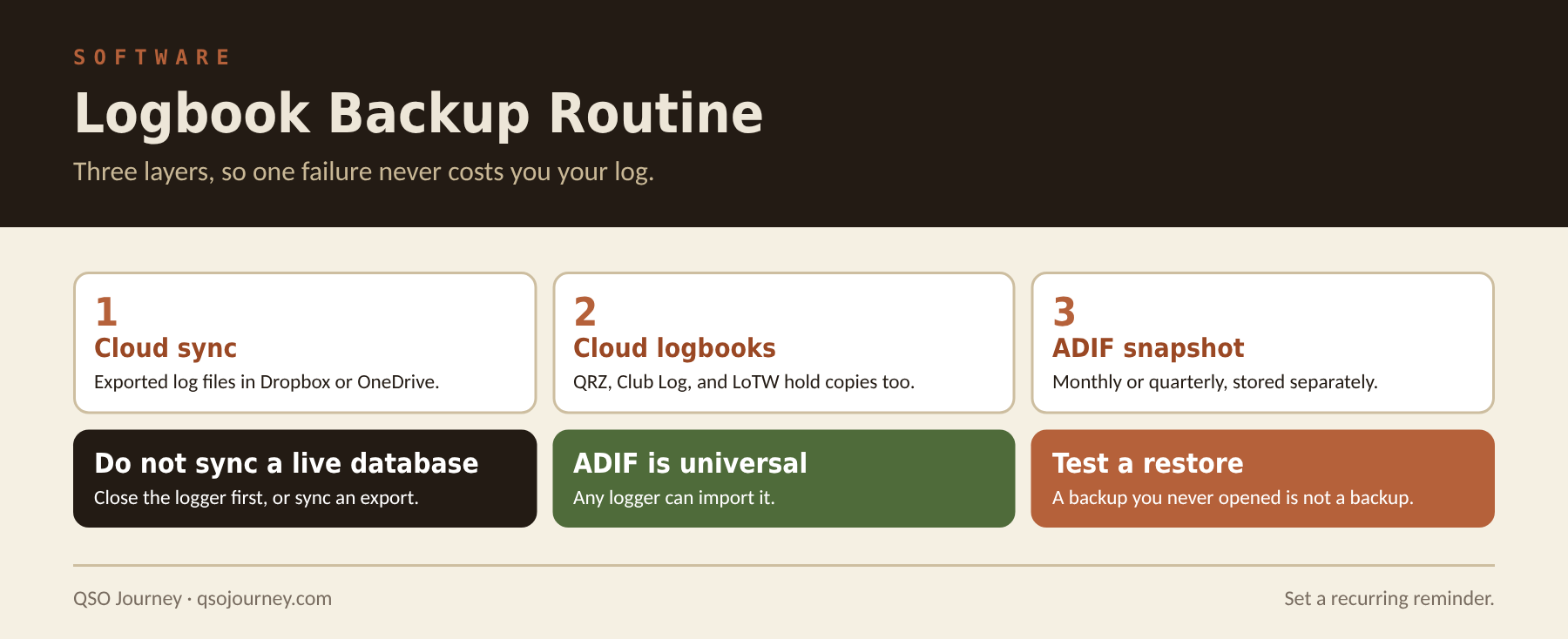
Years of logged and confirmed contacts, the ones working toward WAS or DXCC, are irreplaceable, and a dead drive gives no warning. I use three layers:
- Cloud sync. Put a regular export of the log, or the logger’s database while the logger is closed, in a Dropbox or OneDrive folder. Syncing a database while the logger has it open can leave a corrupted copy.
- Online logbooks as a living backup. I upload every contact to LoTW, QRZ and HRDLog, and each keeps an independent copy. Club Log and HAMRS do the same.
- A periodic ADIF export. Monthly or quarterly, stored apart from your working files. ADIF is the universal logging format, so it also protects you from software changes: it imports into whatever logger you use next.
Set a reminder for the export, and occasionally open a backup file to prove it’s readable. A backup you’ve never tested isn’t a backup. For choosing an online logbook, see Cloud Logging Compared, and for the bigger picture, Logging Software: Why It Ties Your Whole Station Together.